Wondering what to do after you've recieved the activation e-mail?
Don't worry, we're here for you:
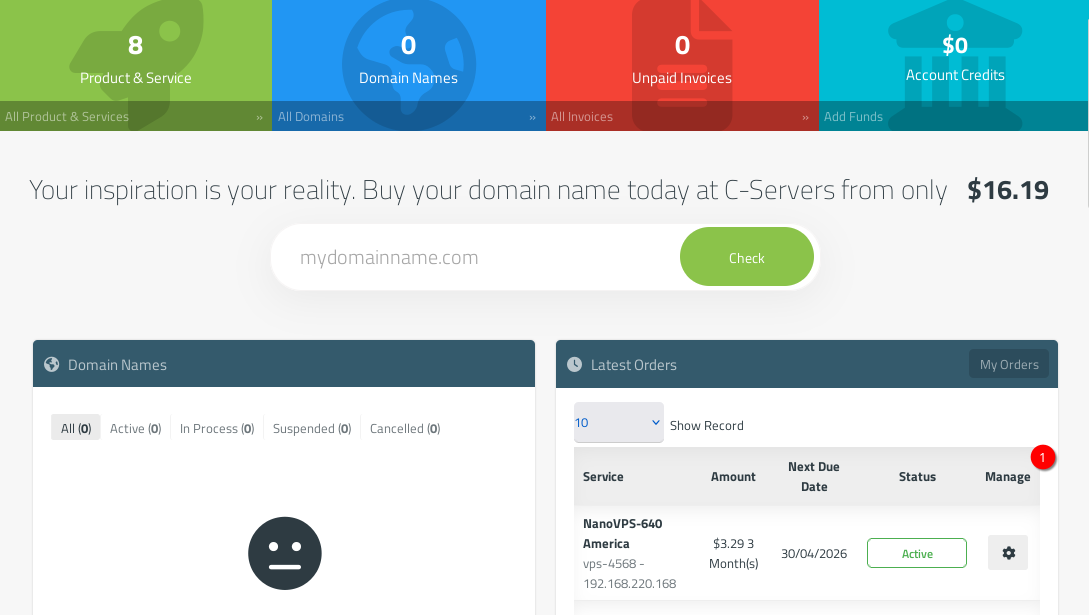
- Once you recieve the activation e-mail, access your WebStore Client Area and, next to your VPS product, click on "Manage", signaled on this screen with the number 1;
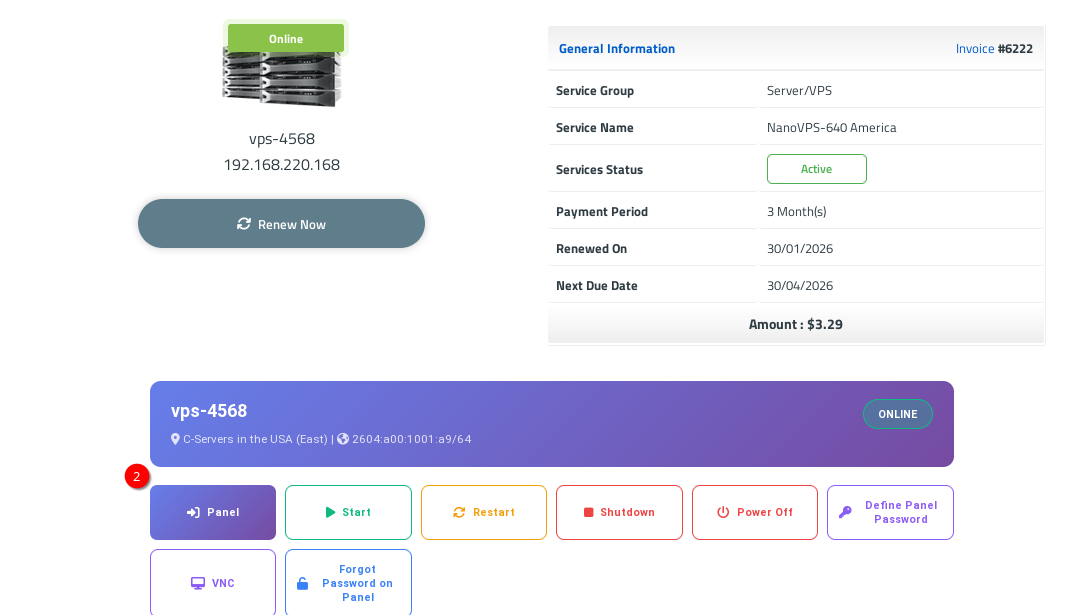
- Click on the "Panel" button slightly below your VPS name (on the opened window), signalled on this screen with the number 2;
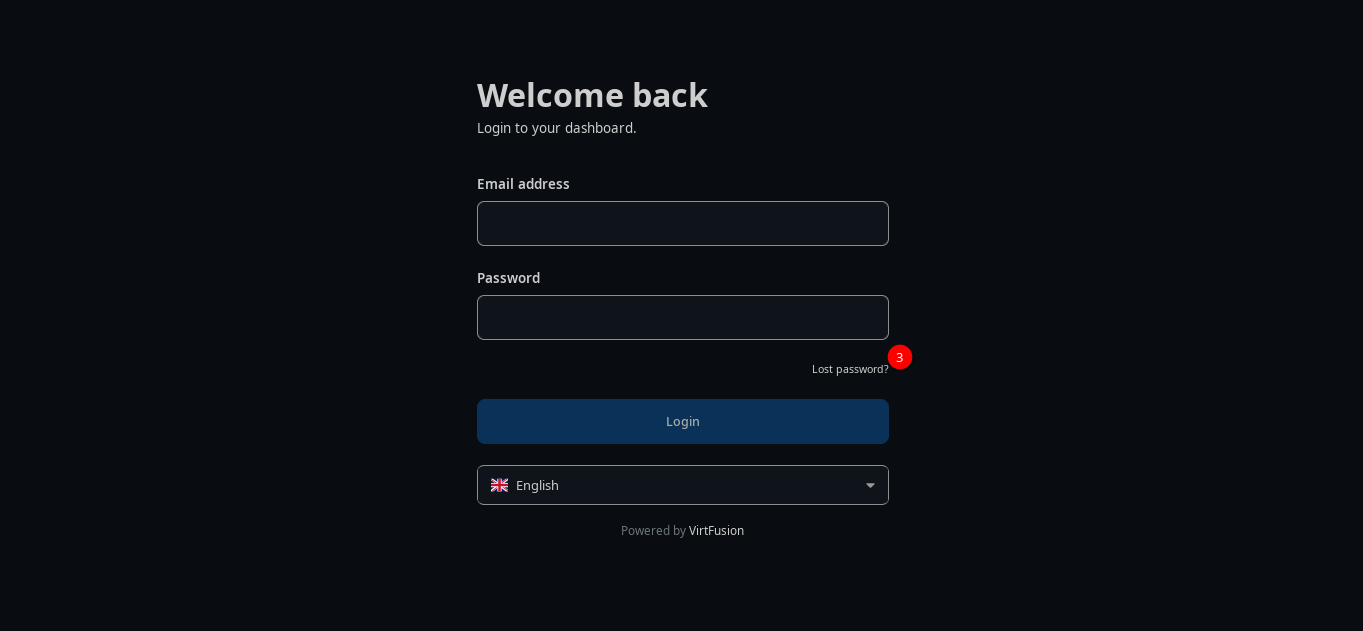
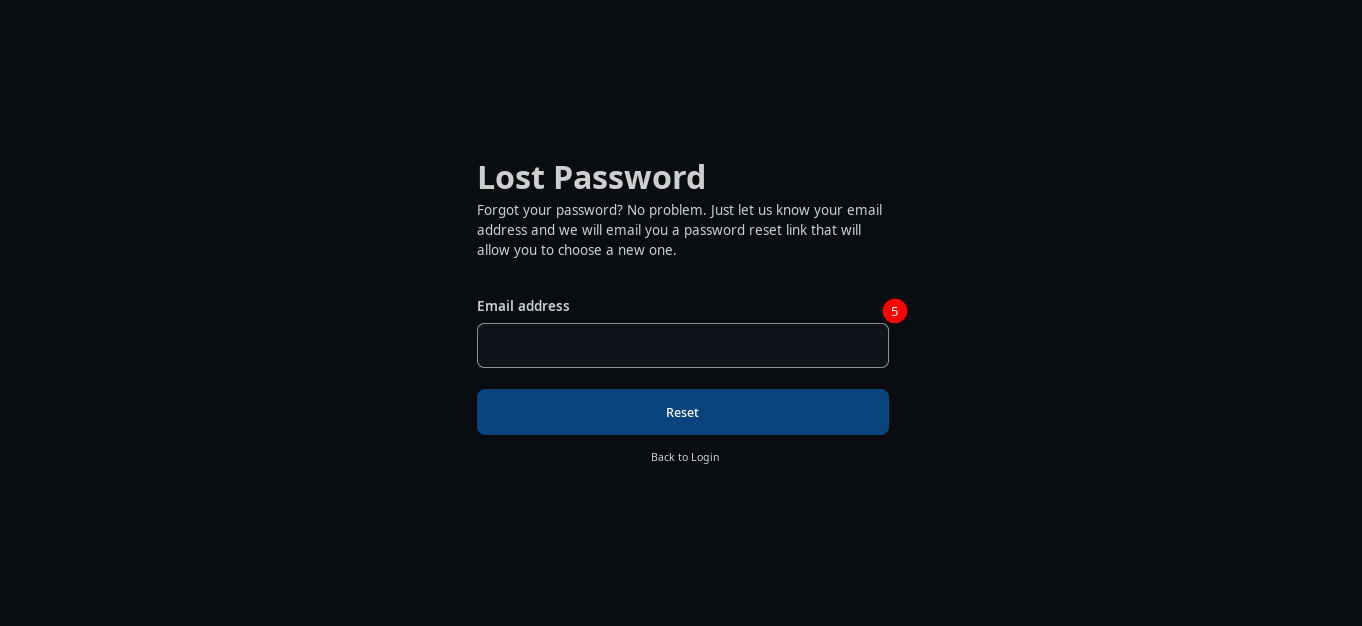
- login to the VirtPortal with your e-mail and password. If this is the 1st access, you'll probably want to reset the password on that same screen (signalled with the number 3). Fill your e-mail and click on Reset (signalled on the image below with the number 5).
Alternatively, you can click on the "Define Panel Password" button (on the same place where you clicked "Panel" on the image above, just after "Power Off"), and clicking on that option will show you the e-mail and password on-screen - you'll need to take note of it e.g. on paper, it's only shown once.
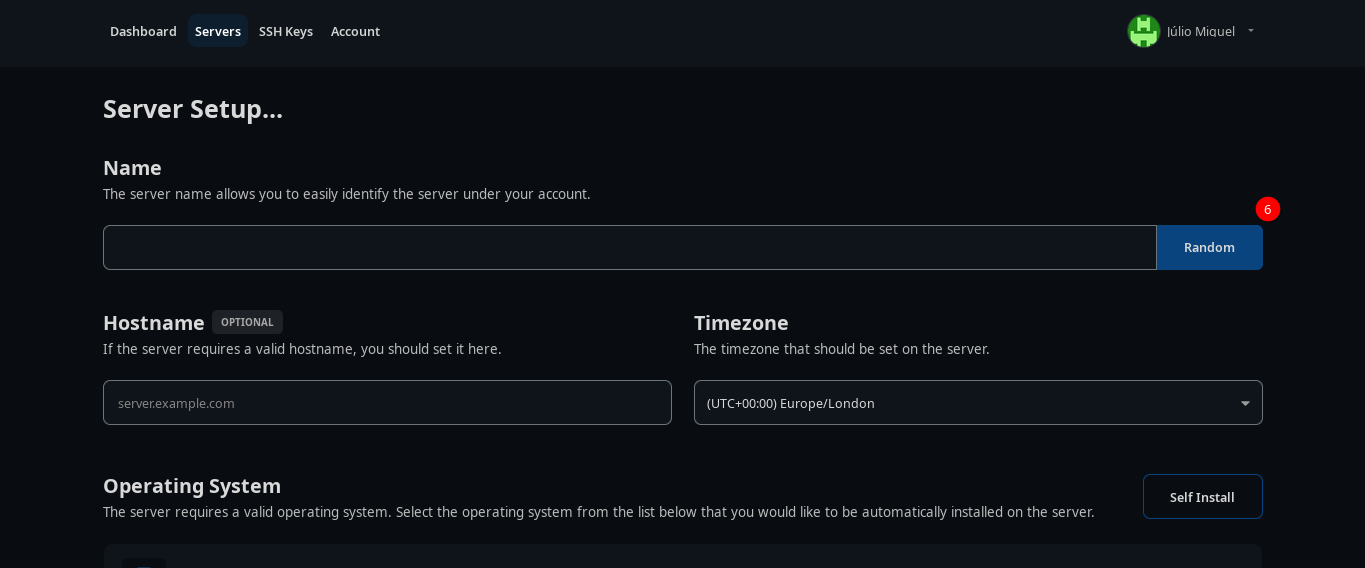
- and after logging in, you're set. Just fill any name for your VPS, signaled on the image with the number 6...
... select an operating system, signaled in red on the image with the number 7...
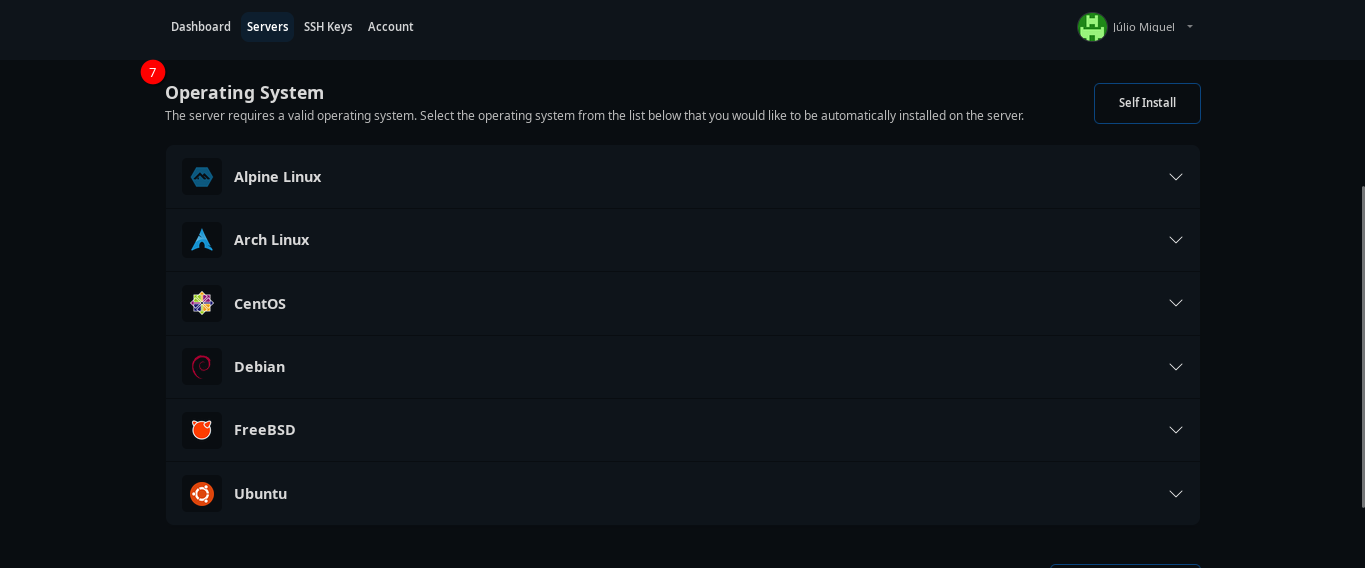
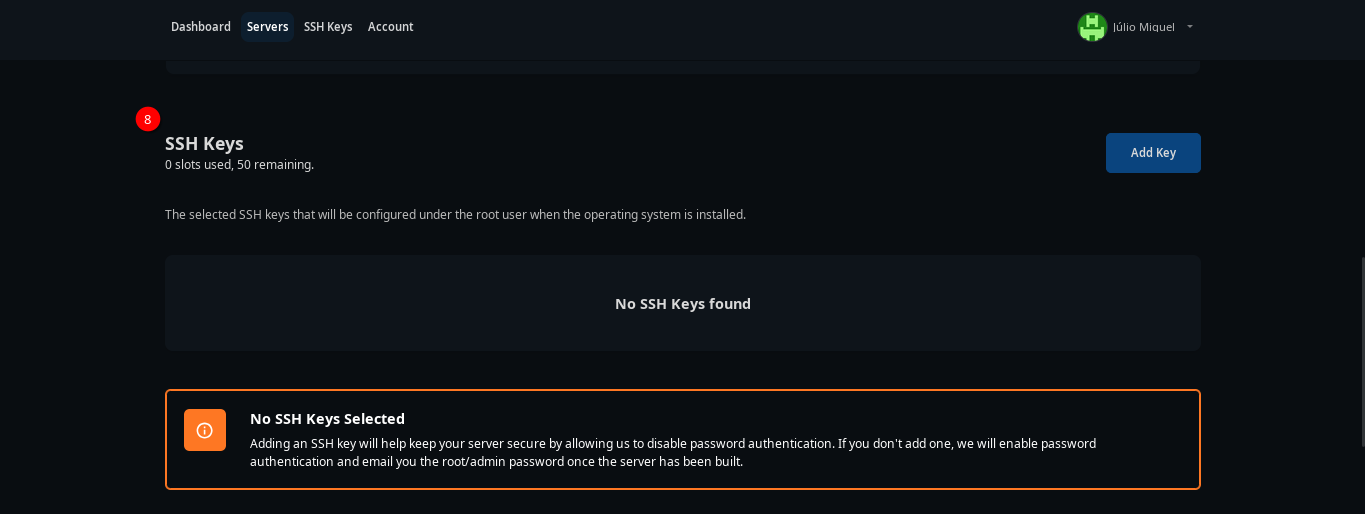
... and you can now select other options. For example, if you'd like, you can insert a SSH key to connect to your VPS instead of the common written password system. Clicking on Add Key (signalled with the number 8) will prompt you to choose a name for the SSH Key and generate a random key. This step is optional by default.
Another optional (but recommended) step that you can take is to enable VNC. This ensures that, if SSH fails, you still have a way of accessing your server. For that, you'll need to click on "Advanced Options" (on the place signalled with the number 9, though on the image it's already opened), and click on the slider shown on the image and signalled with the number 10.
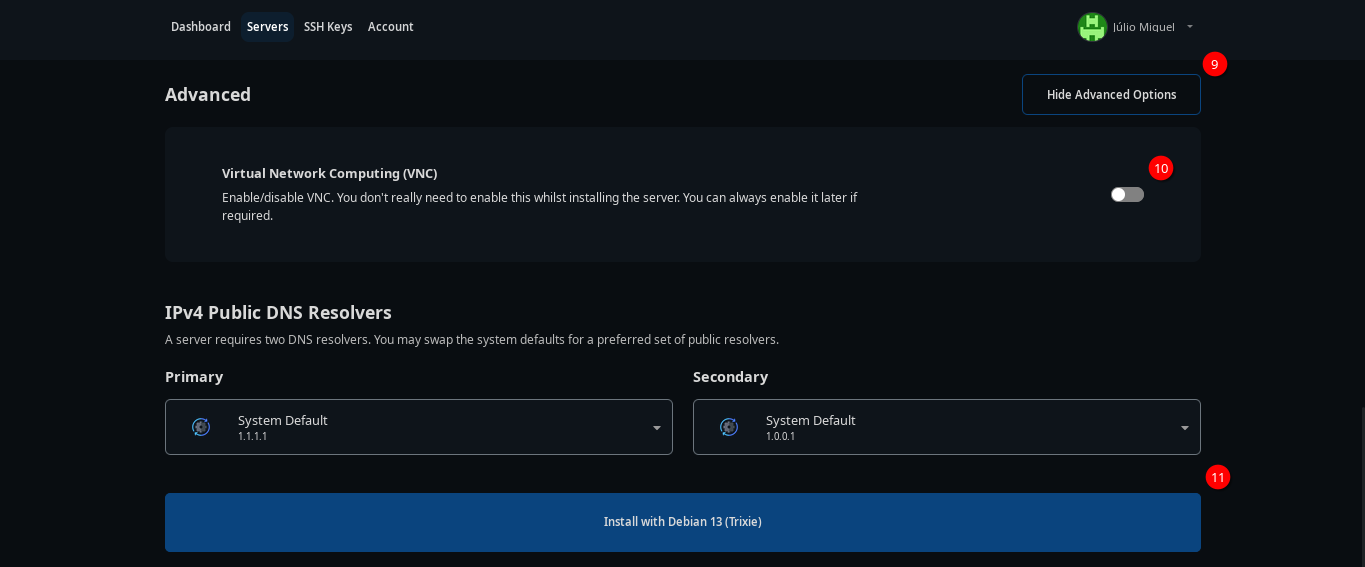
Everything set! Just click the "Install" button, as signalled on the image below with the number 11.
You'll see a brief screen showing the Operating System is being installed, and after it's complete, you'll be greeted with the main Dashboard screen. If you haven't recieved an e-mail already, you'll recieve one from VirtFusion with the IPs, user and password. This will also occur on any reinstalls that you execute on VirtFusion.
Simple, right?
We hope you enjoy our brand-new VirtFusion platform at C-Servers!
Thank you for your feedback.
Sorry about that :( We'll work to make it better.
You voted before.
1067 times viewed | 0 people found it helpful

 Saudi Arabia (North of Africa and Middle East - Arabic)
  Germany (German)
  Spain (Latin America and Europe - Spanish)
  France (Central Africa and Europe - French)
  Brazil (Portuguese)
  China (Simplified Chinese)

 Protected with a 256Bit SSL certificate